A master worth keeping.
Record a whole side at your input’s original sample rate and bit depth. Monitoring conversion and mute stay out of the recording path.
Original-resolution CAF mastersAnalog in. Lossless out.
The albums you keep coming back to, captured with care. Record, find the tracks, and export your collection as lossless FLAC. All from your Mac.
Version 0.2.1 macOS 14+ Apple Silicon & Intel
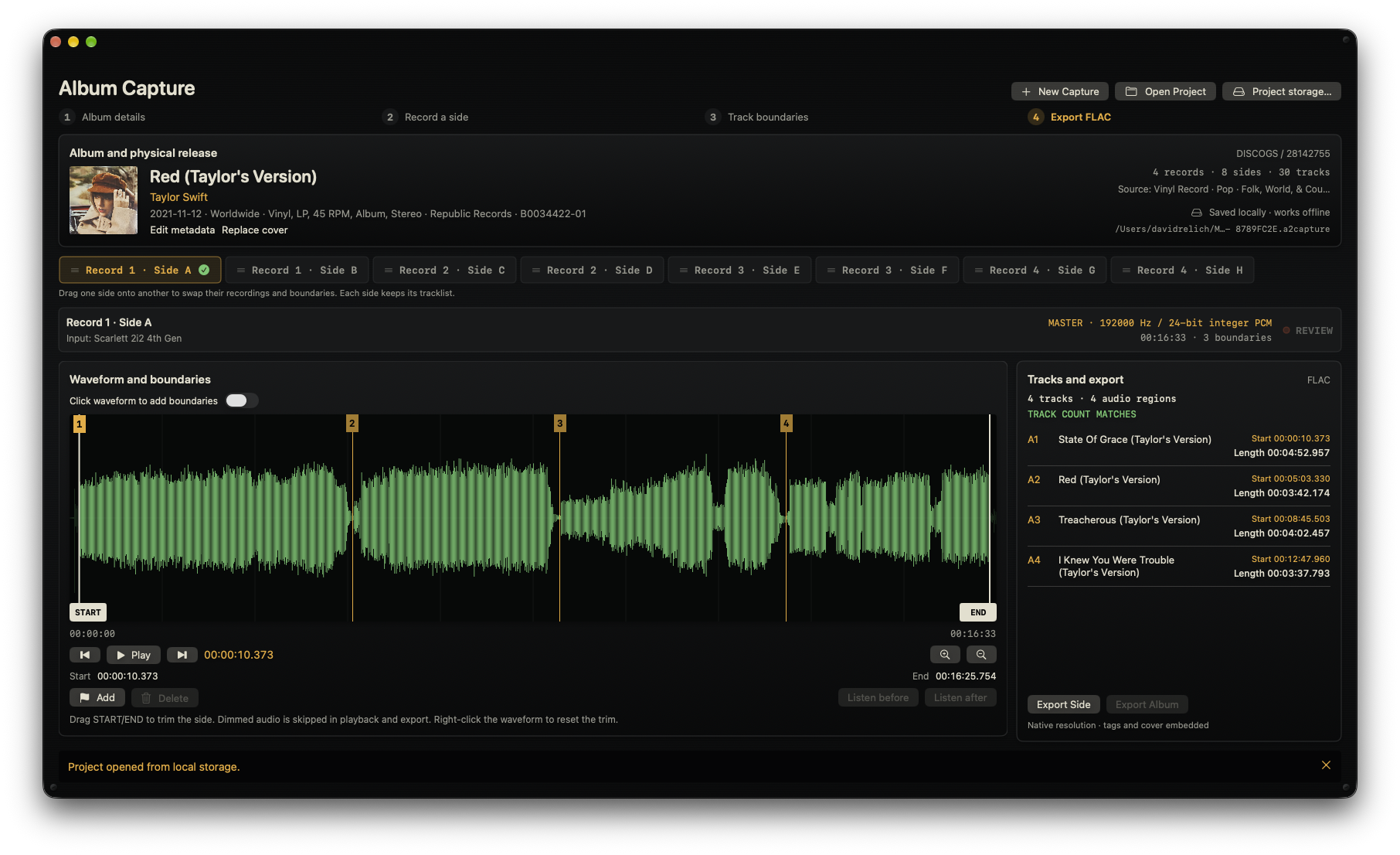
For the love of the source
That first pressing. The tape you haven’t played in years. Capture gives your physical collection a considered path to your digital one.
Record a whole side at your input’s original sample rate and bit depth. Monitoring conversion and mute stay out of the recording path.
Original-resolution CAF mastersZoom into the waveform, drag track starts, and listen just before or after a boundary. Trim the outer edges while keeping the original take intact.
Nondestructive edits, down to the detailExport a side or the whole album as lossless FLAC. Track names, album details, numbering, source tags, and cover art go with it.
Tagged tracks. Embedded artwork.From sleeve to library
An album-first workspace that understands physical sides, track order, and the details that make an edition special.
Look up a Discogs Release ID, search with your personal token, or enter the details yourself. Check the sides, track order, and cover before you begin.
Choose your Core Audio input and stereo channel pair. Record each side at its native resolution, with live monitoring through your Mac’s selected output.
Review the waveform, place track starts, and trim the beginning and end. Recorded the wrong side? Swap its recording onto the correct side tab.
Export individual FLAC tracks with their metadata and artwork. Every export gets a fresh folder; your original side masters remain in the project.
After2AM Capture is deliberately simple. It records your source as-is, helps you divide it into tracks, adds the metadata and artwork, and exports lossless FLAC files.
It does not remove clicks, scratches or hiss. It doesn't normalise, EQ, repair or otherwise clean up your recordings. If you need restoration tools like those, VinylStudio is a much more capable choice.
Capture is for when you want to preserve what comes out of your audio interface — without turning the process into a project of its own.
Listen while you capture
The compact SC-01 monitor keeps your stereo input in view, with LED level meters, peak memory, and separate clip indicators.
Listen through the current macOS output, even when its sample rate differs from your input. Mute the output whenever you need a moment of quiet.
Get to know the monitor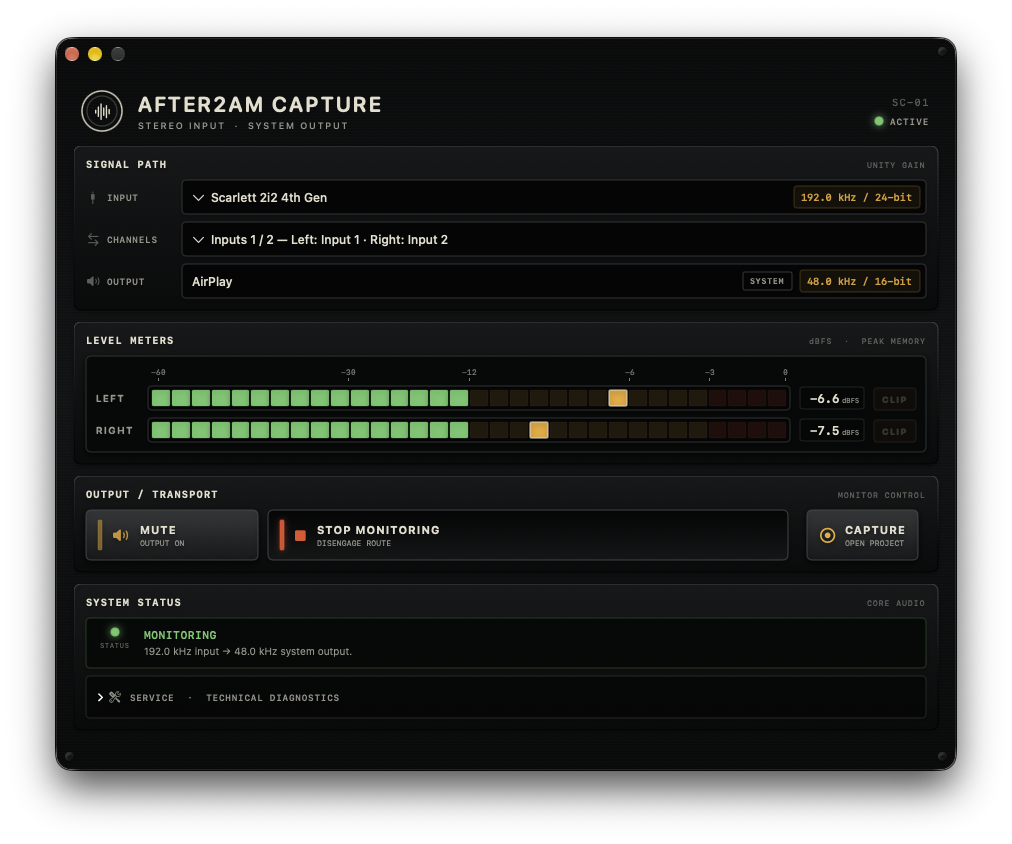
Beyond the turntable
Vinyl is where it begins. Capture also accepts CD players, cassette decks, reel-to-reel players, and other stereo sources through your audio interface.
The originals stay with you
Keep the audio masters, artwork, metadata, and edits together in a local project folder. Save it on your Mac or an external SSD, reopen it offline, and export again whenever you like.
Discogs helps you get started. Once its metadata and cover are saved, editing and export work offline.
A Mac running macOS 14 or later, a Core Audio input device with a stereo input, and your audio source. For vinyl, use an appropriate phono preamp before the interface’s line input.
No. Capture records through an independent input path. Monitoring mute, output sample-rate conversion, and clock-drift correction do not affect the saved master. Set the recording level on your audio interface.
Yes. Trim points and track starts are saved as project edits. They never rewrite the side master. Reset the side trim from the waveform context menu, move markers, and export again.
You can enter all metadata manually or look up a specific Release ID without a personal token. Searching by artist and album requires your Discogs personal token, which stays in macOS Keychain.
Capture retains the available audio and marks the take incomplete. Review and explicitly accept an interrupted take before exporting it. Input-device and format changes stop the recording instead of silently dropping audio.
After2AM Capture
A native macOS companion for the collection you love.
Download for macOS